
Adding a Trusted Contact
We believe that the best defense is a shared one. When you add a Member to an account, you can also add one or more Trusted Contacts for that Member. Trusted Contacts will get automated alerts when the Member adds a new contact or receives a message with elevated risk signals.
To add a Trusted Contact, find the Member in the Subscription tab or the User Groups tab. Then select the eye (“Trusted Contact”) icon next to the Member and add the Trusted Contact’s email address. They will receive an invitation to join as a Trusted Contact for that Member.
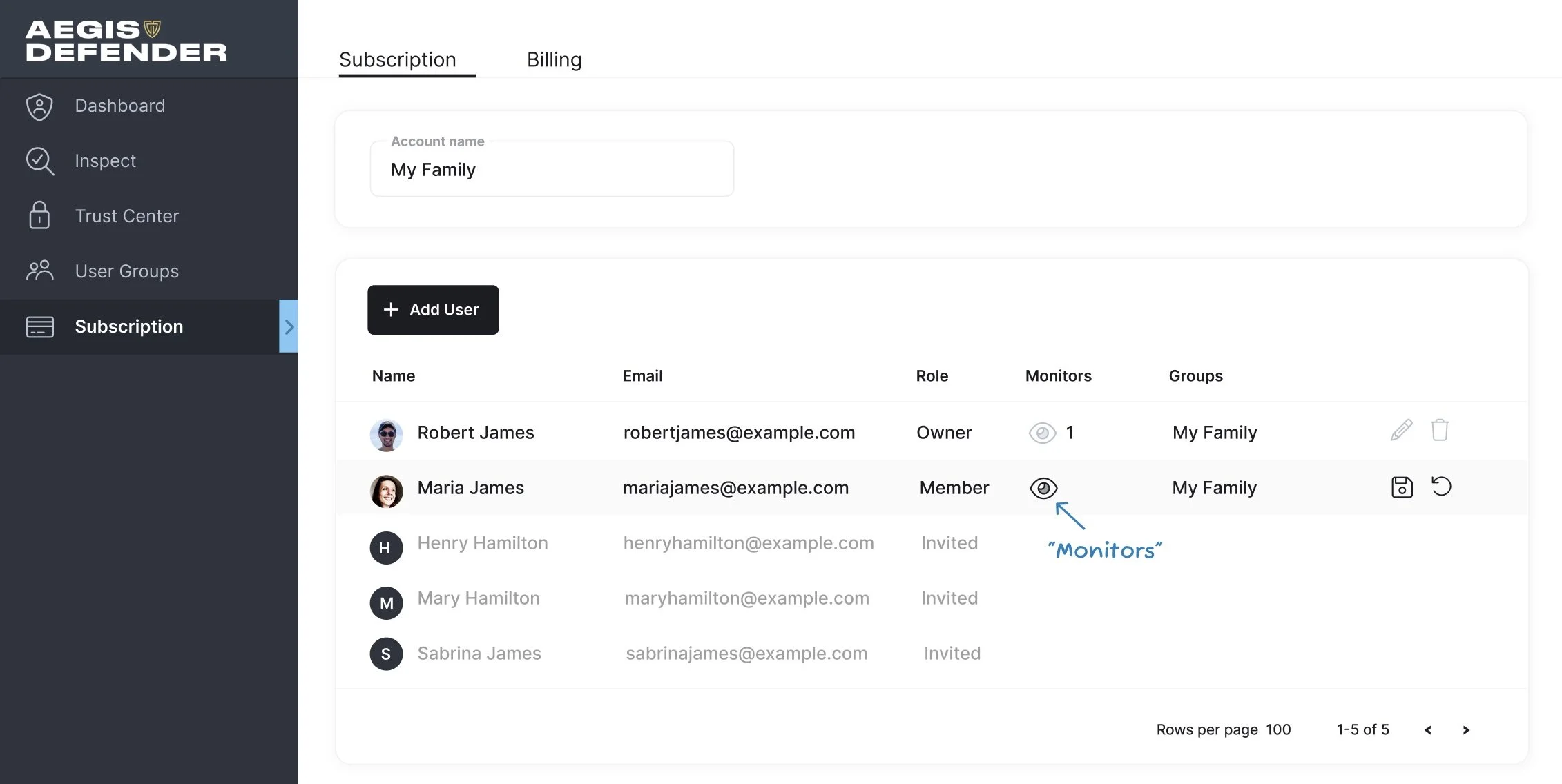
Select the eye icon to manage Trusted Contacts.
As a Trusted Contact, you will not see the actual message that the Member received, but will be able to see the risk signal that we detected as well as the contact that the message is regarding. Our intention is that the Trusted Contact can then determine whether or not they want to check in with the Member.
For instance, if you have set up your parent as a Member with automated monitoring, you can add your siblings as Trusted Contacts. They will receive alerts when your parent receives an elevated risk message.
Account Admins will automatically receive risk alerts for every Member under their subscription.
